Service principal network location allowlist
A service principal network location allowlist limits where a service principal can obtain a bearer token from, based on IP address. It complements secret rotation, the primary control for a compromised credential, because a service principal secret can be valid for up to two years and a leaked secret keeps working until you rotate it. The allowlist closes that gap between when a secret is leaked and when the secret is rotated by blocking token requests from outside your approved network locations.
See Service Principal Secret Management for more information on secret rotation.
How the Network Location Allowlist Works
A network location is a named set of IP address ranges. You create network locations once, then assign one or more of them to a service principal. See Network Locations Service.
Understand the following before you enable an allowlist:
- The allowlist applies at bearer token creation. The check happens when the service principal exchanges its secret for a bearer token. Once the bearer token is issued, the token remains valid for its full lifetime of one hour. The allowlist limits bearer token generation; it does not revoke tokens already issued.
- The address evaluated is your public egress address, as observed by Citrix Cloud. This is the address your traffic appears to come from after any NAT or proxy on your side.
- Only IPv4 is supported. IPv6 will be supported in the near future.
Before You Begin
- Identify the public IPv4 address or range that your automation calls from. If your traffic leaves through a NAT gateway or proxy pool, allow the whole range rather than a single address because the address can vary between connections.
Note:
Network locations are shared with other Citrix services that use them for internal and external network detection. Changing a network location’s address ranges affects those services as well as any service principal assigned to it.
Configuring the Network Location Allowlist
This section shows the whole flow through the Citrix Cloud console, then the same result as API automation.
Configuring the Allowlist via the UI
Network locations can be added directly in the service principal create or update flow, so there is no need to create them separately beforehand.
-
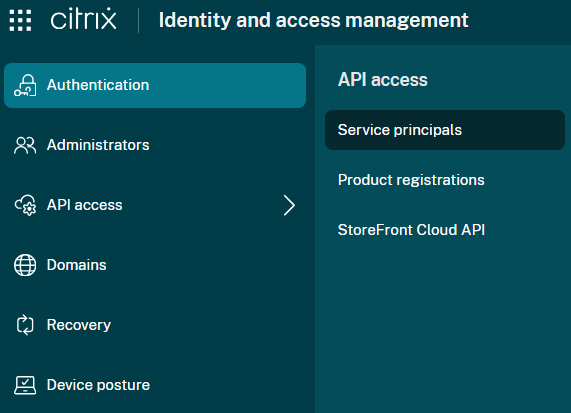
In the Citrix Cloud console, select Identity and Access Management > API Access > Service principals.
-
Create a service principal, or select an existing one to update.
-
Choose to allow access only from selected network locations.
-
Select the network locations to allow. To define a new one without leaving the flow, select Add Network Location and enter a name and one or more IPv4 CIDR ranges.
-
Save.
Network locations can also be managed on their own from the Network Locations page in the Citrix Cloud console. See Network Locations for official Network Locations documentation.
Configuring the Allowlist via API Automation
Obtain a bearer token as described in Get started with Citrix Cloud APIs. Create the network location first, either in the console as described above or with the Network Location Service. You then need that network location’s siteId, which the Citrix Cloud console does not display. The steps below retrieve it and add it to the service principal’s allowlist.
1. Get the siteId of the network location
The allowlist call identifies a network location by its siteId. The Citrix Cloud console does not show this value, either on the Network Locations page or when you select network locations for a service principal, so read it from the Network Location Service.
Call GET https://network-location.cloud.com/location/v1/sites
Note:
Use https://network-location.citrixcloud.jp if your Citrix Cloud account is set to the Japan region.
| Parameter | Parameter Type | Value |
|---|---|---|
| Authorization | header | The Citrix Cloud bearer token |
| Citrix-CustomerId | header | The Citrix Cloud Customer ID |
Response sample (abbreviated):
HTTP/2 200 OK
Content-Type: application/json
...

{
    "sites": [
        {
            "id": "8596df6c-24e7-4f3c-bb2c-ad04b68de3ba",
            "name": "HQ",
            "ipv4Ranges": ["203.0.113.0/24"]
        }
    ]
}
<!--NeedCopy-->
This call returns the value as id. That id is the siteId you send in the allowlist call.
If you manage network locations with the Network Location Service PowerShell module, the same value is the id property of the objects returned by Get-NLSSite and New-NLSSite, for example (Get-NLSSite | Where-Object name -eq 'HQ').id.
2. Get the service principal’s current allowlist
The allowlist call is a full replace, not a patch. Read the service principal first so you can send its existing network locations along with your change. If you skip this step, any network locations already on the allowlist are removed.
Call GET https://api.cloud.com/serviceprincipals/{id}
Note:
Use https://api.citrixcloud.jp if your Citrix Cloud account is set to the Japan region.
| Parameter | Parameter Type | Value |
|---|---|---|
| id | path | The target service principal clientId |
| Accept | header | application/json |
| Authorization | header | The Citrix Cloud bearer token |
| Citrix-CustomerId | header | The Citrix Cloud Customer ID |
Response sample (abbreviated):
HTTP/2 200 OK
Content-Type: application/json
...

{
    "clientId": "12345",
    "name": "ServicePrincipal1",
    "accessType": "Full",
    "networkLocations": [
        "8596df6c-24e7-4f3c-bb2c-ad04b68de3ba"
    ],
    "allowFromAnywhere": false
}
<!--NeedCopy-->
3. Set the allowlist
This call replaces the whole allowlist. Send the complete set of network locations you want, including any returned by the previous step; values you omit are removed.
Call PUT https://api.cloud.com/serviceprincipals/{id}/networklocations
Note:
Use https://api.citrixcloud.jp if your Citrix Cloud account is set to the Japan region.
| Parameter | Parameter Type | Value |
|---|---|---|
| id | path | The target service principal clientId |
| Accept | header | application/json |
| Authorization | header | The Citrix Cloud bearer token |
| Citrix-CustomerId | header | The Citrix Cloud Customer ID |
| Content-Type | header | application/json |
| networkLocations | body | The siteId values of the network locations to allow |
| allowFromAnywhere | body |
false to enforce the allowlist; true to allow any address |
Request sample:
PUT https://api.cloud.com/serviceprincipals/12345/networklocations HTTP/2
Accept: application/json
Authorization: CWSAuth bearer=<token>
Citrix-CustomerId: <customer_id>
Content-Type: application/json

{
    "networkLocations": ["8596df6c-24e7-4f3c-bb2c-ad04b68de3ba"],
    "allowFromAnywhere": false
}
<!--NeedCopy-->
Response sample:
HTTP/2 200 OK
Content-Type: application/json
...

{
    "ucOid": "OID:/citrix/5925f1fc-4b16-48f9-a2b7-9db44a80c31e",
    "clientId": "12345",
    "customerId": "customerid1",
    "serviceProfile": null,
    "creator": {
        "name": "John Doe",
        "ucOid": "OID:/citrix/54321"
    },
    "createdDate": "2026-09-01T20:52:09Z",
    "name": "ServicePrincipal1",
    "accessType": "Full",
    "primary": {
        "type": "Password",
        "expirationDate": "2027-03-01T00:00:00Z",
        "creationDate": "2026-09-01T20:52:08Z"
    },
    "secondary": null,
    "lastAccessedDate": "2026-09-01T20:52:32Z",
    "networkLocations": [
        "8596df6c-24e7-4f3c-bb2c-ad04b68de3ba"
    ],
    "allowFromAnywhere": false
}
<!--NeedCopy-->
Error responses:
| Condition | Status | Response |
|---|---|---|
allowFromAnywhere is false and no network location is supplied |
400 | A service principal that does not allow access from anywhere (AllowFromAnywhere = false) must have at least one network location. |
A supplied siteId does not exist for the customer |
400 | Unknown network location siteId(s) for customer <customer_id>: <siteId> |
Error response sample:
HTTP/2 400 Bad Request
Content-Type: application/json
...

{
    "detail": "A service principal that does not allow access from anywhere (AllowFromAnywhere = false) must have at least one network location.",
    "statusCode": 400,
    "type": "https://errors-api.cloud.com/common/badRequest"
}
<!--NeedCopy-->
4. Allow authentication from anywhere
To allow a service principal to obtain tokens from any address again, set allowFromAnywhere to true.
Call PUT https://api.cloud.com/serviceprincipals/{id}/networklocations
Request sample:
PUT https://api.cloud.com/serviceprincipals/12345/networklocations HTTP/2
Accept: application/json
Authorization: CWSAuth bearer=<token>
Citrix-CustomerId: <customer_id>
Content-Type: application/json

{
    "networkLocations": [],
    "allowFromAnywhere": true
}
<!--NeedCopy-->
Note:
You do not have to clear
networkLocationswhen you setallowFromAnywheretotrue. Any list you send is stored but not evaluated, so you can lift the allowlist temporarily without losing the configuration and restore it later by settingallowFromAnywhereback tofalse. ThesiteIdvalues are still validated on write, so they must still exist.
Assigning One Network Location to Multiple Service Principals
There is no bulk endpoint. To apply the same network location across several service principals, loop over them and call the allowlist endpoint once per principal.
Note:
The allowlist call is a full replace. To add a network location to a service principal that already has one, read its current
networkLocationsfirst and send the merged list. Sending only the newsiteIdsilently removes the others.
The following PowerShell example adds one network location to each service principal in a list, preserving any locations already on its allowlist. The same read-merge-write pattern applies in any language; see the request and response samples above for the underlying calls.
$customerId  = "<your-customer-id>"
$bearerToken = "<your-bearer-token>"
$siteId      = "8596df6c-24e7-4f3c-bb2c-ad04b68de3ba"
$clientIds   = @("11111", "22222", "33333")

$headers = @{
    "Accept"            = "application/json"
    "Authorization"     = "CWSAuth bearer=$bearerToken"
    "Citrix-CustomerId" = $customerId
    "Content-Type"      = "application/json"
}
$baseUrl = "https://api.cloud.com/serviceprincipals"

foreach ($clientId in $clientIds) {
    try {
        $sp = Invoke-RestMethod -Uri "$baseUrl/$clientId" -Method GET -Headers $headers

        # Preserve any locations already on the allowlist; the PUT is a full replace.
        $locations = @()
        if ($sp.networkLocations) { $locations = @($sp.networkLocations) }

        if ($locations -contains $siteId) {
            Write-Host "${clientId}: already assigned, skipping"
            continue
        }
        $locations += $siteId

        $body = @{
            networkLocations  = @($locations)
            allowFromAnywhere = $false
        } | ConvertTo-Json -Depth 4

        Invoke-RestMethod -Uri "$baseUrl/$clientId/networklocations" -Method PUT -Headers $headers -Body $body | Out-Null
        Write-Host "${clientId}: allowlist now has $($locations.Count) network location(s)"
    }
    catch {
        Write-Warning "${clientId}: $($_.Exception.Message)"
    }
}
<!--NeedCopy-->
Verify the Allowlist
Confirm the allowlist behaves as you expect before you rely on it.
-
From an address inside one of the allowed network locations, request a bearer token as described in Get started with Citrix Cloud APIs. The request succeeds as usual.
-
From an address outside every allowed network location, request a bearer token again. Citrix Cloud returns 403 Forbidden.
HTTP/2 403 Forbidden
Content-Type: application/json
...

Access denied: the request originates from a network location that is not permitted for this client.
<!--NeedCopy-->
An incorrect clientId or secret returns the usual invalid-credentials error instead, so a 403 carrying this message confirms that the credentials were accepted and the address was rejected.
Note:
A change is not enforced instantly. Allow up to 15 minutes after saving an allowlist before you test. Changing a network location’s IP address ranges in the Network Location Service takes longer and can be up to an hour before it takes effect. Re-test rather than assuming a change has taken effect.