
Testing Your MAM SDK Enabled App
Background
Once an application with integrated iOS MAM SDK functionality is built and an MDX file is generated, it's a good time to test it out.
Prerequisites
Upload MDX file to CEM Service
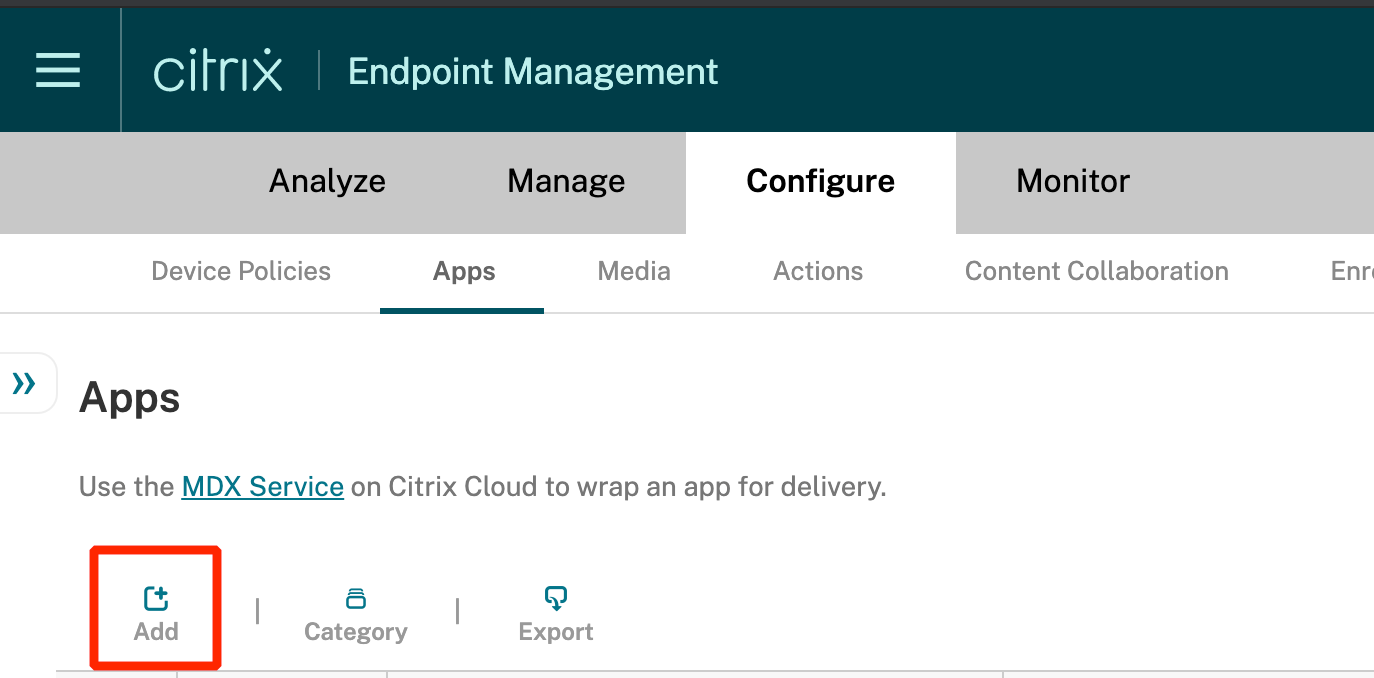
Launch the CEM Console. Navigate to Configure→Apps and click Add.
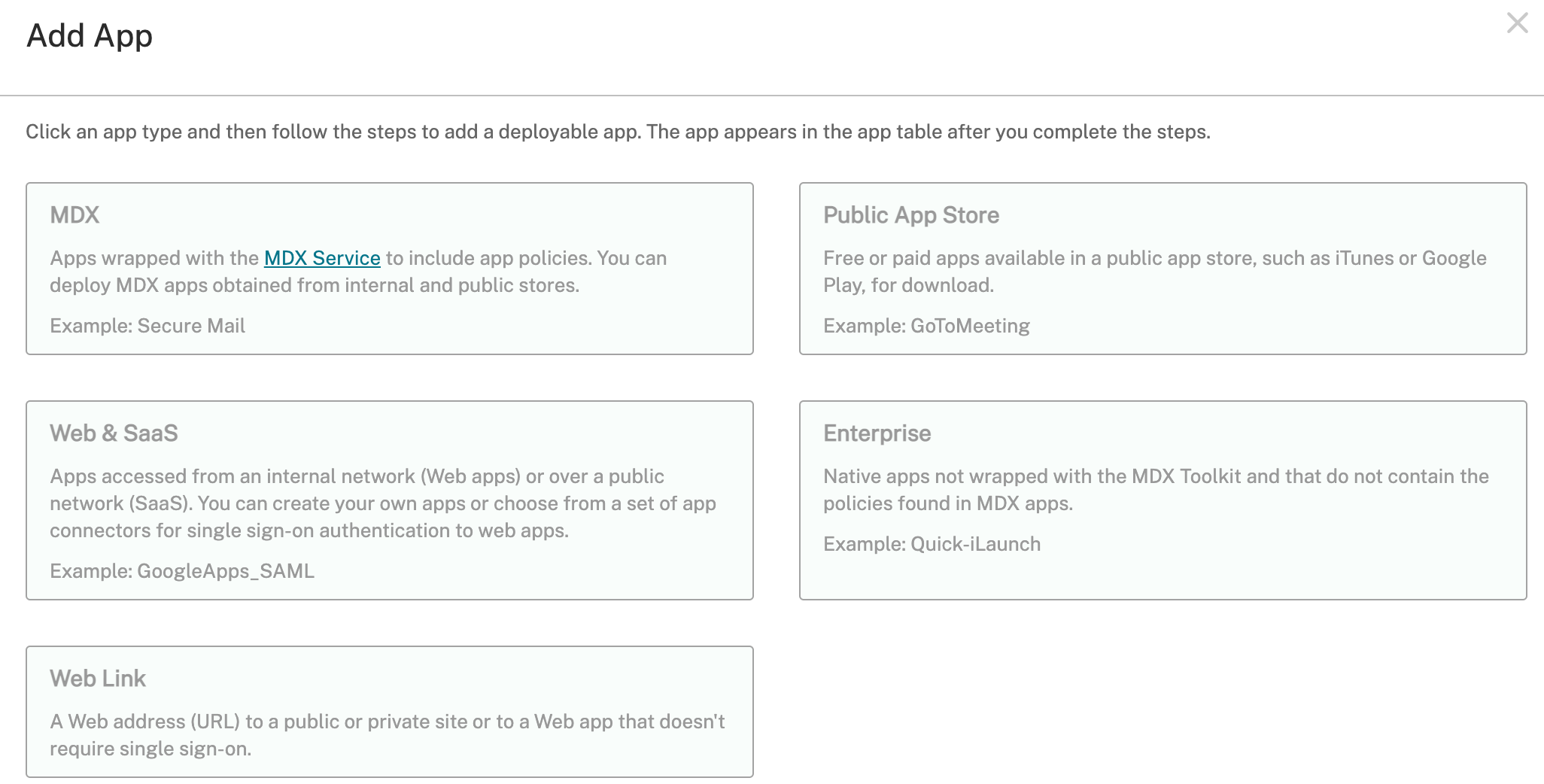
Click anywhere in the MDX box.
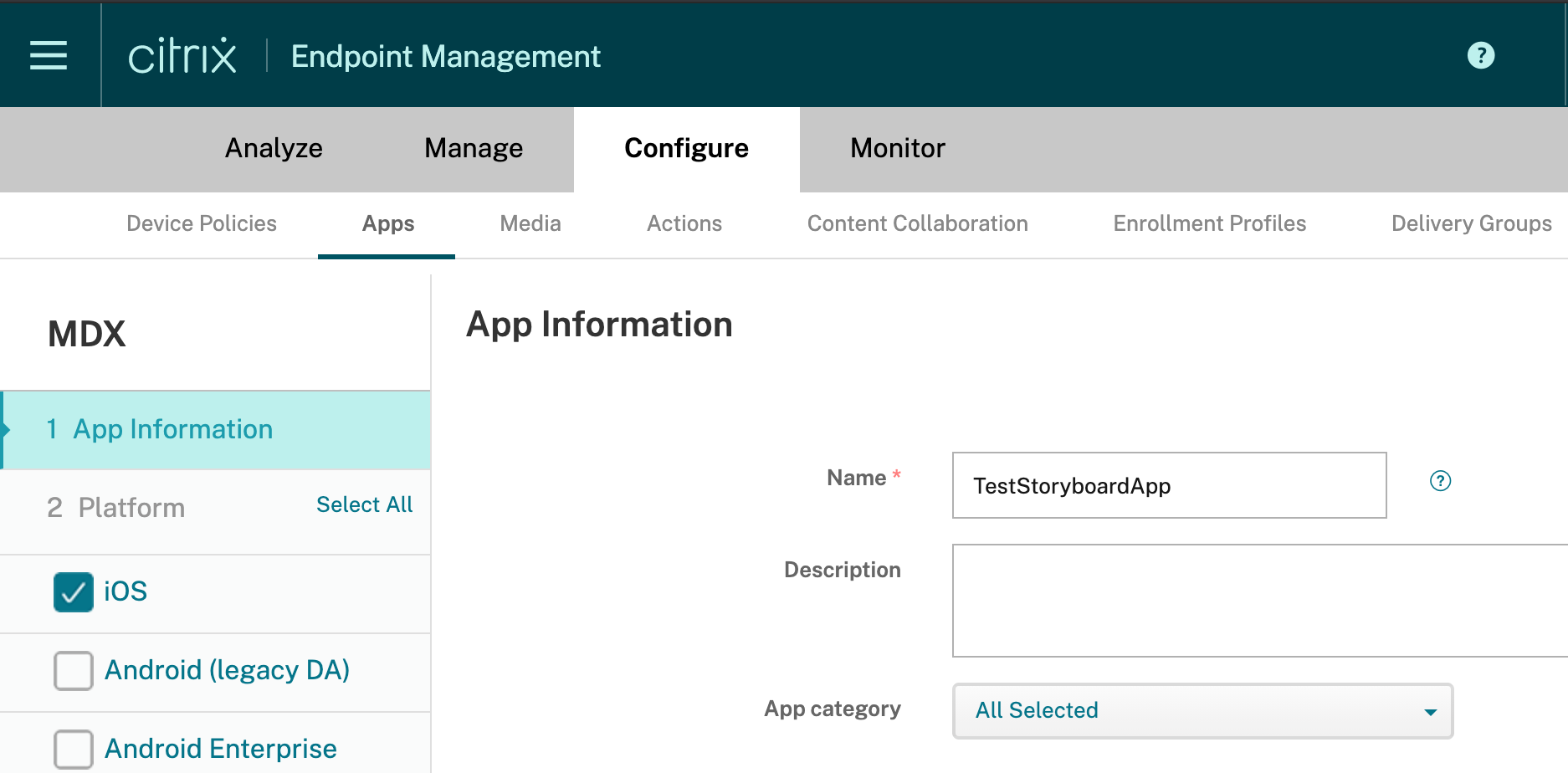
Name the application (This is the application name users will see in Secure Hub for the application).
Click Next. Click Upload next to Select an .mdx file to upload.
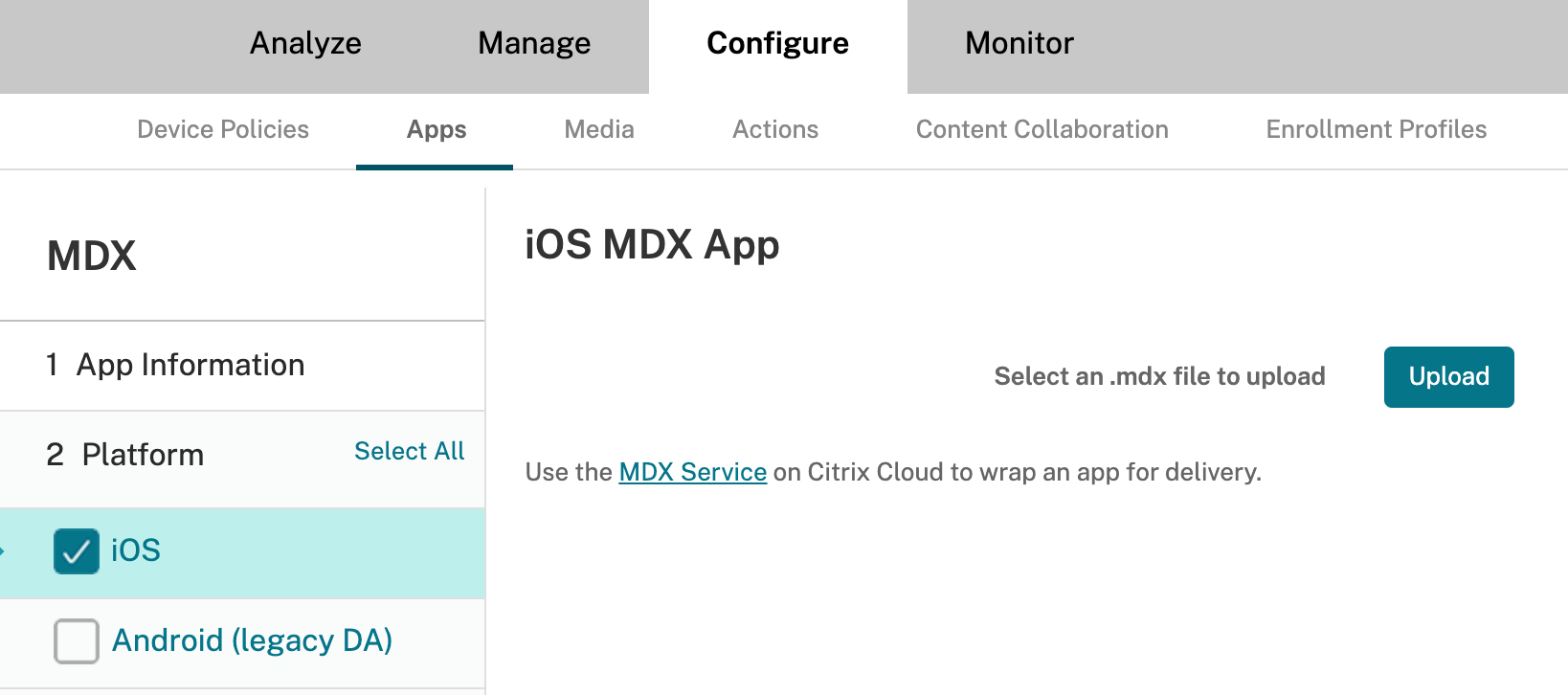
In the file dialog navigate to: \<Project Dir>/DerivedData/\<Project Name>/Build/Products/Debug-iphoneos/, select \<Project Name>.mdx and click open.
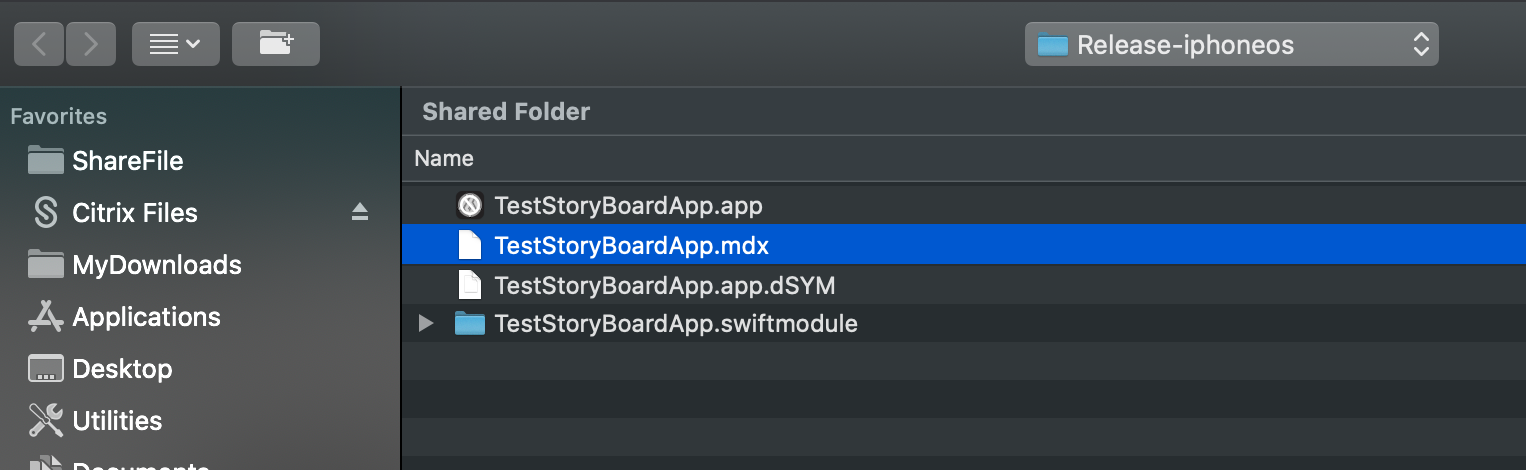
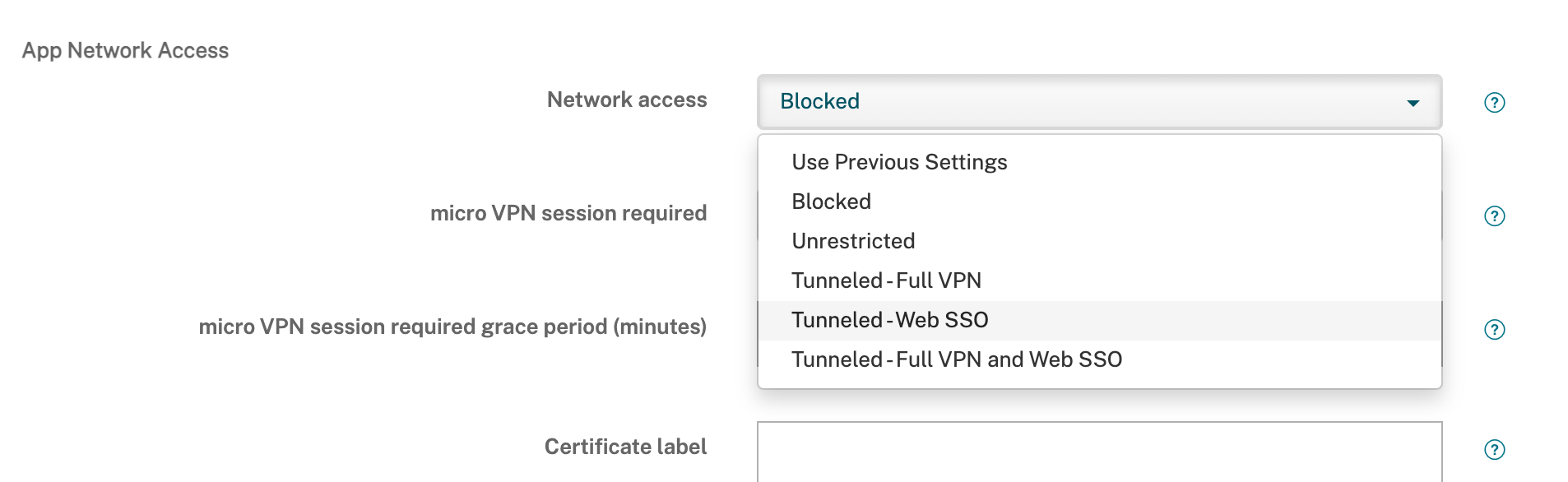
Scroll down in the policy page to the Network Access section and select Tunneled - Web SSO.
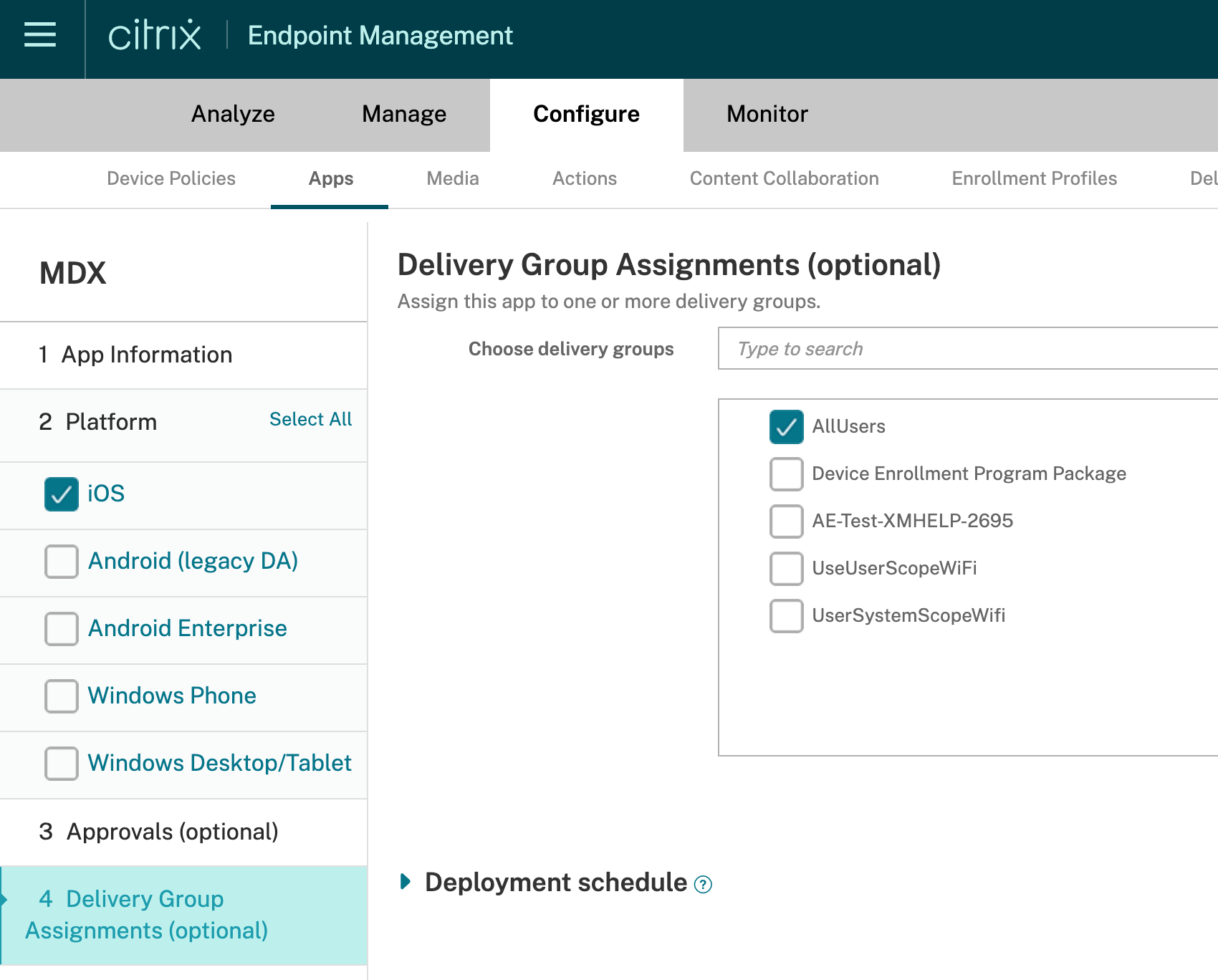
Uncheck the following platforms on the left:
-
Android (legacy DA)
-
Android Enterprise
-
Windows Phone
-
Windows Desktop/Tablet
Click "Next" on the remaining screens until you get to Delivery Group. For our testing we selected the "All Users" Delivery Group.
-
Delivery groups determine which user groups get the assigned app.
-
Delivery groups map to AD user group(s).
-
If this is tested in a production environment, then limiting application to specific dev groups would be recommended.
Click Save.
Install from CEM Server
Install the App from the CEM Server onto your test device.
Warning
Depending on the distribution method, the app may not be embedded into the MDX file at this point. So you will have to side load it from Xcode.
Open Secure Hub and navigate to Store.
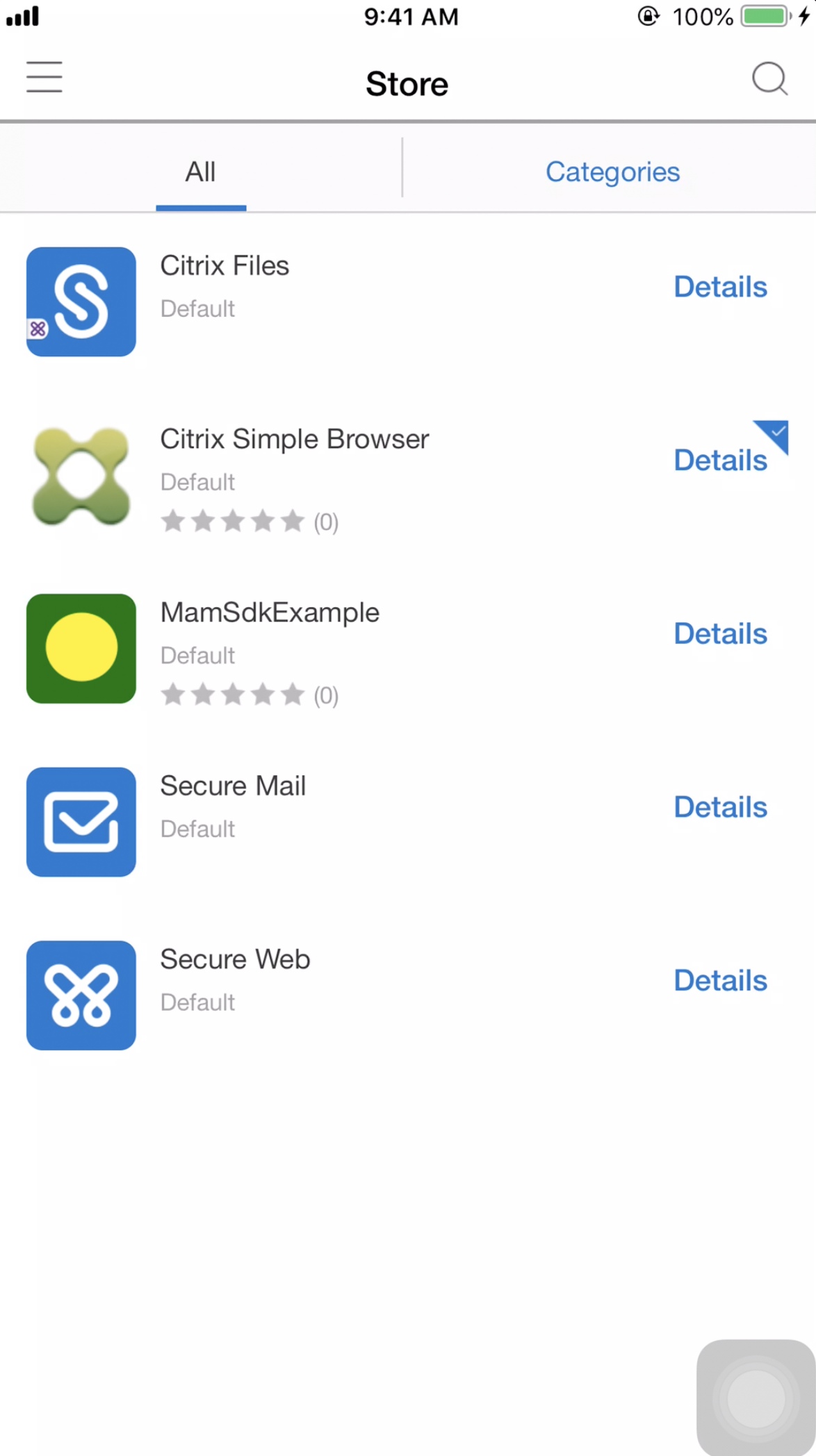
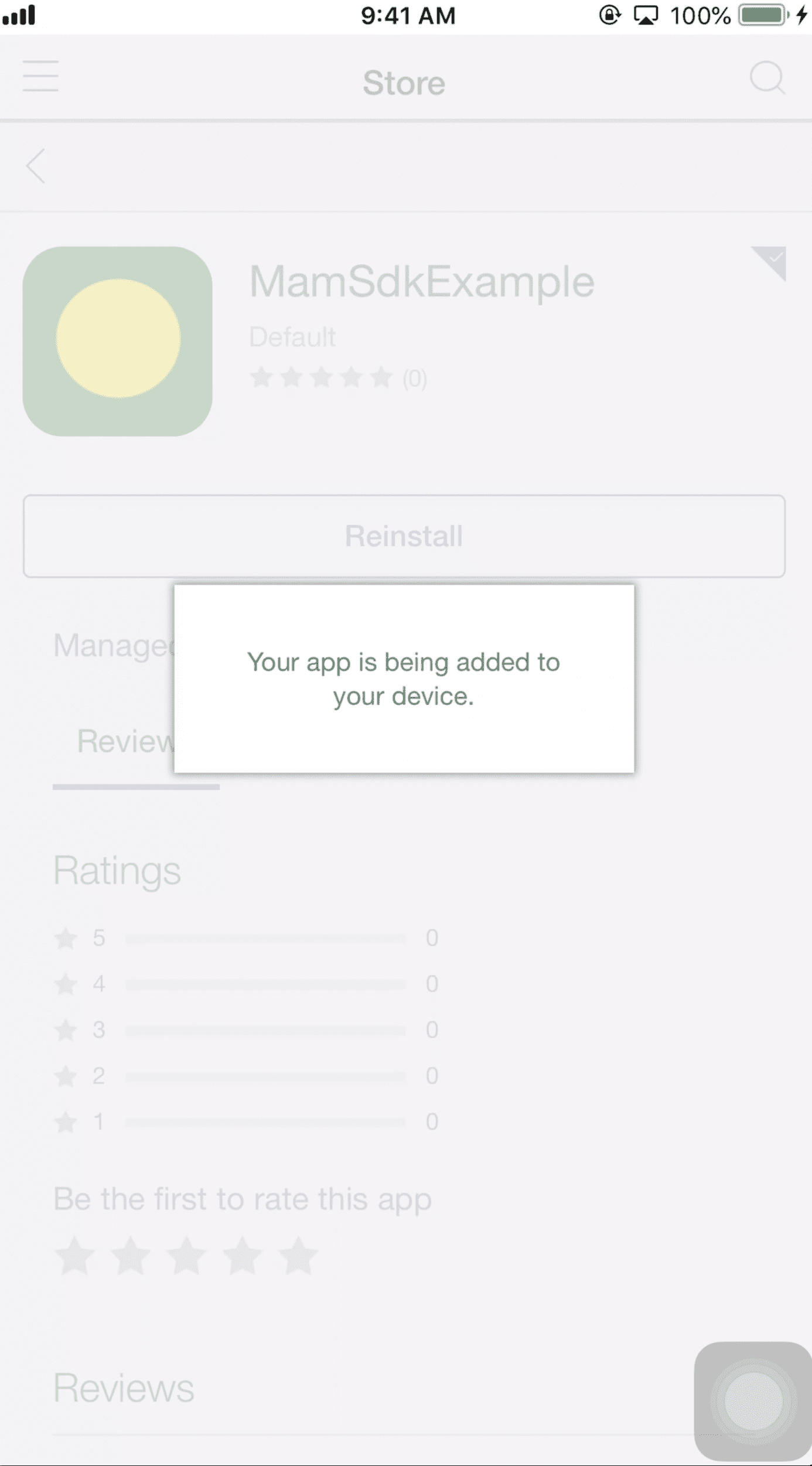
Tap on the newly uploaded app, tap on Add. A message will appear, Your app is being added to your device.
Building (Optional Step)
Building Release Configuration (Optional Step)
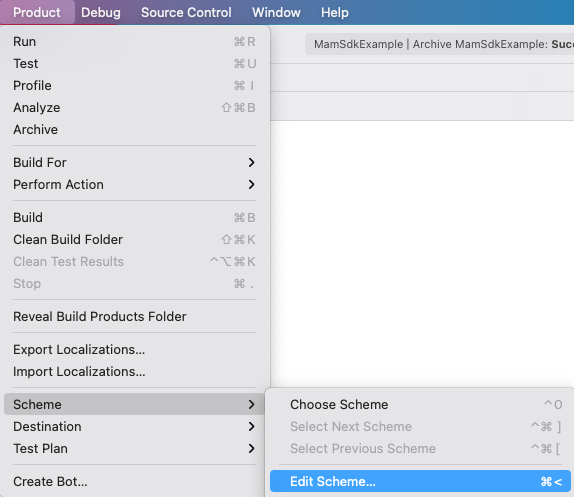
Navigate to Product->Scheme→Edit Scheme.
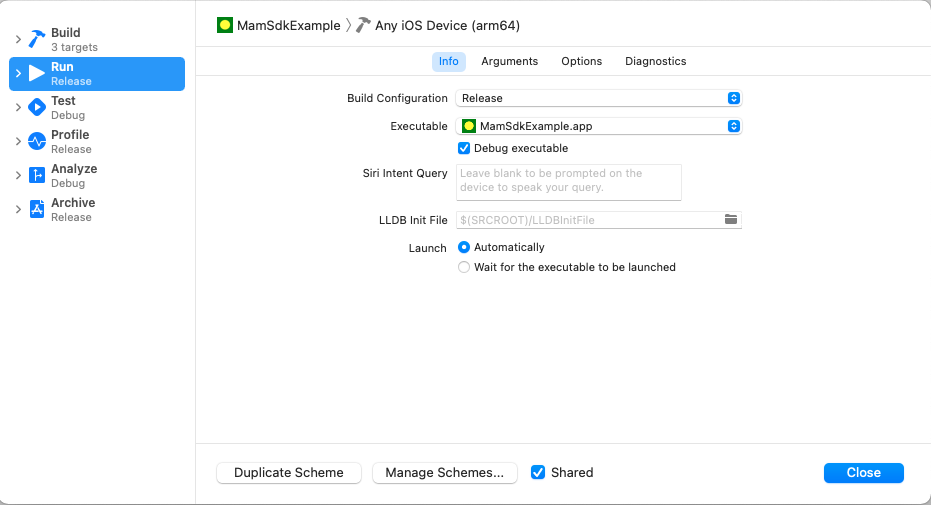
Select Run and set Build Configuration to Release.
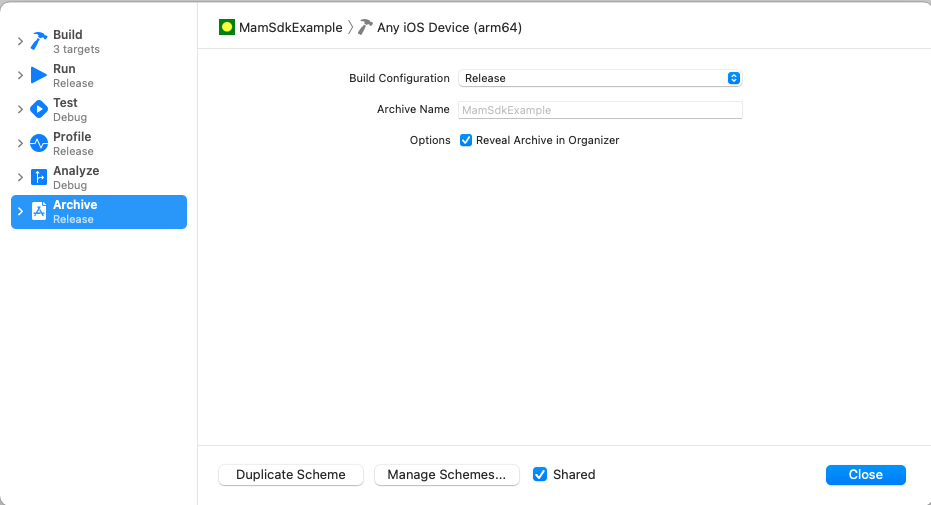
Select Archive. The Build Configuration should be already set to Release.
Warning
Running in Release Configuration may eliminate the Compliance Warning when side-loading
Test your app
Select the device and run the app in Xcode (i.e. side load). This will install the app onto the device. A message appears: \<App Name> wants to open Secure Hub.
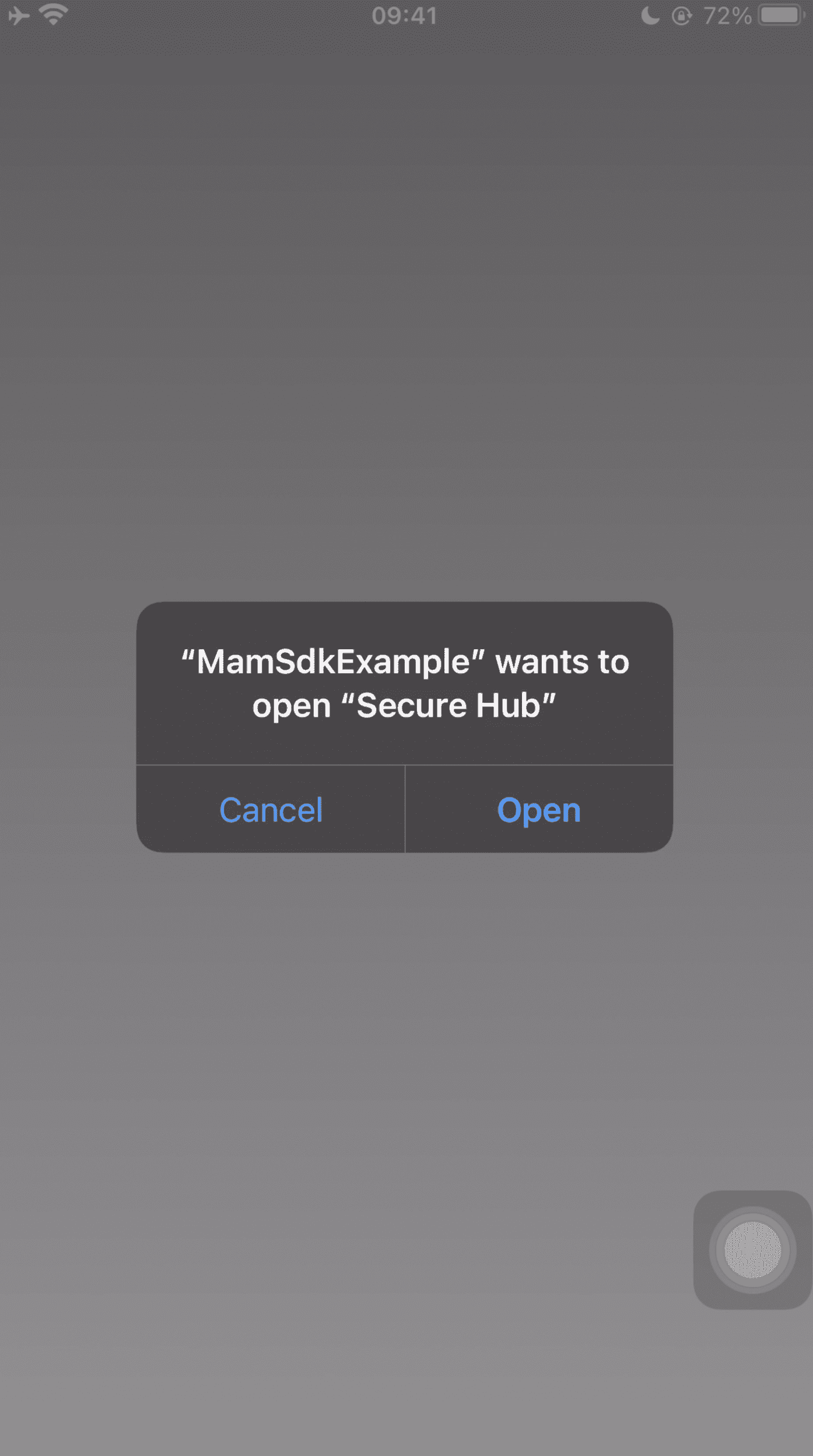
Tap on Open. Secure Hub will open and then send you back to your app. You can now test and debug the application.
You should now have full functionality to include: policy downloads, compliance checks, microvpn, etc.
See Also
Configure Policies